Source Note
This mind map follows the supplied PDF's Windows section on pages 64–73. Page 74 begins the next section, MS Office / Microsoft Word. Dates, labels and file-extension spellings below are kept source-based rather than silently updated from outside information.
Introducing Windows 11
Microsoft Windows visual from the source PDF
  • The source introduces Windows 11 as Microsoft's latest operating system with new features and capabilities.
  • It emphasizes a more user-friendly environment, improved support and work on advanced features such as Cortana.
  • विंडोज 11 के परिचय में source user expectations, advanced features और user-friendly environment पर जोर देता है।
What is Microsoft Windows?
  • Windows is a personal computer operating system from Microsoft.
  • The source notes that, together with commonly used applications such as Microsoft Word and Excel, Windows became a standard for many individual users.
Windows Versions — Source Timeline
VersionDate shown in source
Windows 115-Oct-2021
Windows 102015
Windows 8.118 October 2013
Windows 826 October 2012
Windows 722 October 2009
Windows Vista30 January 2009
Windows XP25 October 2001
Windows ME14 September 2000
Windows 200017 February 2000
Windows 9825 June 1998
Windows 9524 August 1995
Windows NT 3.124 August 1993
Windows 3.1April 1992
Windows 1.0120 November 1985
⚠ SOURCE-BASED CAUTION
The timeline above reproduces the dates as printed in the supplied PDF. It is not a web-updated Windows release chronology.
Starting the Computer — Booting
  • Booting = process of loading or reloading the operating system into computer memory.
  • Cold Boot: OS loads when power is turned on.
  • Warm Boot: OS reloads when the computer is already on.

Cold Boot

Power OFF → Power ON → OS loads

Warm Boot

Computer already ON → OS reloads/restarts
Tasks Performed at Boot-up
1. POSTPower-On Self Test checks devices
2. InitializeCPU registers, device controllers, main memory
3. Bootstrap LoaderSpecial program locates/loads OS
4. AuthenticationUser name + Password
5. User InterfaceInteraction with programs begins
  • Hardware itself does not know where the OS resides or how to load it; the source names the special program Bootstrap loader.
  • Authentication/login occurs through user name and password.
⚡ QUICK RECALL
POST → Initialize → Bootstrap Loader → Login → User Interface.
Windows Screen & Screen Tips
Windows screen parts shown in source PDF
ScreenTip and Enhanced ScreenTip visual
  • The source uses the Windows screen to identify workspace, windows, folders/files/applications, Start menu, taskbar and date/time.
  • Screen Tips: point the mouse at interface elements to get on-screen hints.
Start Menu & Desktop Icons
Start menu visual
Start menu visual
Exploring the Start Menu visual
Windows desktop icons shown in the source
Recycle Bin visual
Recycle Bin visual
  • Start Menu: point to/click the Start button.
  • Recycle Bin: double-click its icon to view its contents.
My Computer
My Computer / Windows icon visual from source PDF
⚡ SCREEN MEMORY
Desktop → Start Menu → Taskbar → Icons → Recycle Bin → Explorer.
Opening Windows Explorer
Windows Explorer screen
Explorer interface with labeled areas
  • Source note: Right-clicking an object opens its shortcut menu.
  • Windows 7 is described as offering at least eight ways to view folder contents; use the Change your view button.
Exploring Windows visual
Getting Help visual included in the source PDF
GUI vs CUI
GUI visual from source
CUI / Command Prompt visual from source
GUICUI
Graphical User InterfaceCommand User Interface / command-line interface
Interaction using graphical icons and visual indicators.Interaction using text: words, numbers, symbols, commands.
Visual, point-and-click style.Text/command driven.
⚠ EXAM TRAP
GUI = Graphical User Interface. CUI in the source = Command User Interface; it also calls it the command-line interface.
Microsoft Windows Accessories / Utilities

Magnifier

Display utility that enlarges a portion of the screen for better readability.

On-Screen Keyboard

Visual keyboard with standard keys; keys can be selected using mouse/pointing device.

Disk Clean-up

Deletes temporary Internet/program files, empties Recycle Bin and removes temporary files.

Resource Monitor

Shows CPU, disk, network and memory usage; also per-process statistics.

Task Scheduler

View/customize scheduled tasks and create custom scheduled tasks.

Disk Defragmenter

Consolidates fragmented data on a volume so it can operate more efficiently.
More Windows Tools

System Information

Shows details about the computer, peripherals, environment variables and startup programs.

Character Map

Used to copy/paste accented and foreign-language characters into Windows applications.

System Restore

Recovery tool that reverses certain kinds of operating-system changes.
Data Fragmentation
The source describes fragmentation as a particular piece of data being split into several pieces and saved on the hard disk.
Windows Shortcut Keys — Source Table
ShortcutFunction shown in source
Ctrl + CCopy
Ctrl + VPaste
Ctrl + ZUndo
Alt + FFile menu choice in current program
Alt + EEdit option opens current program
Ctrl + ASelect all matter in document
Alt + F4Close open application
Ctrl + ESCOpen Start menu
Print ScreenScreen Shot
Alt + TabSwitch among open applications
F1Help
F2Rename
Shift + DelTo Delete
F3Search
F5Refresh
Shift + F10Open shortcut menu for selected item
F10Activate the menu bar
F11Switch the application on the task bar
Alt + ESCSwitch the application on the task bar
Alt + Down ArrowOpen drop-down list box
Windows LogoStart Menu
Windows Logo + MMinimize all
Windows Logo + EOpen Windows Explorer
Windows Logo + BreakSystem Properties dialog box
Windows Logo + LLock the Computer
Windows Logo + DMinimize all open windows and display desktop
⚡ HIGH-YIELD KEYS
Alt + F4 Close • Alt + Tab Switch apps • F2 Rename • F3 Search • F5 Refresh • Win + E Explorer • Win + L Lock • Win + D Desktop
⚠ SOURCE NOTE
The PDF contains a duplicated/incomplete F10 row. The clear F10 entry (“Activate the menu bar”) is included above; the incomplete duplicate is not interpreted beyond what the source supports.
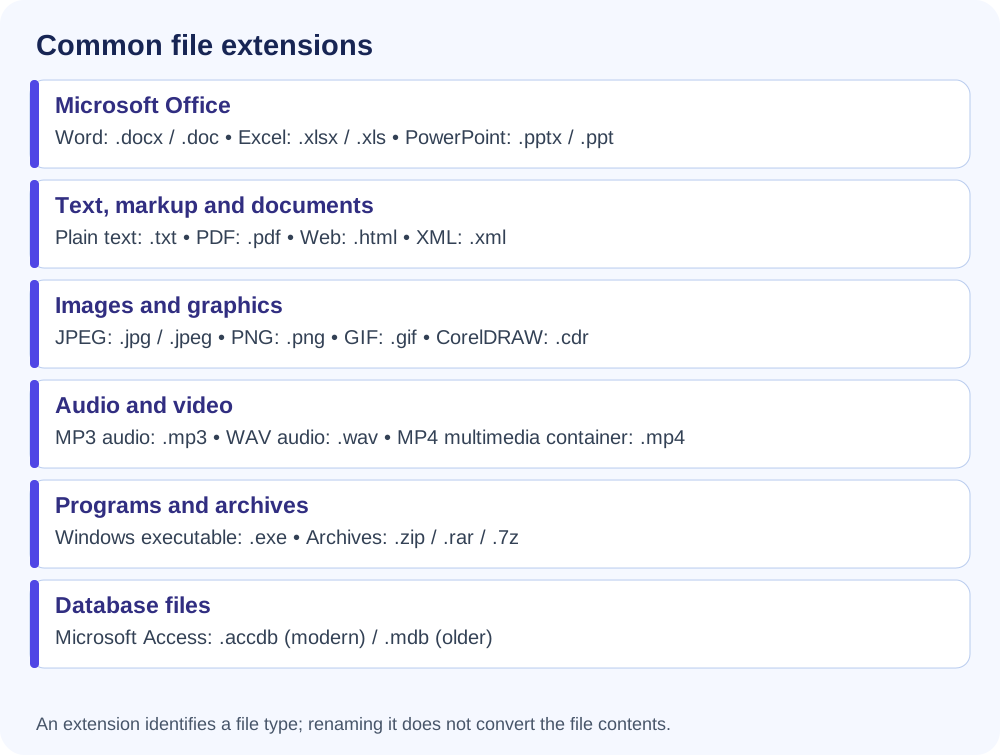
Extension Files
File-extension mind-map graphic from the source PDF
Application / FormatExtension
MS Word.doc
MS Excel.xls
MS PowerPoint.ppt
MS Outlook.pst
MS Access.mdb
Paint.bmp
Adobe Reader.pdf
Adobe Photoshop.psd
Notepad.txt
WordPad.rtf
Temporary Files.tmp
CorelDraw.cdr
Backup File.bak
Joint Photographic Experts Group.jpeg
Graphic Interchange Format.gif
Tagged Image File.tif
Portable Network Graphic.png
ExtensionMeaning shown in source
.wmaWindow Media Audio File
.raReal Audio File
.swaShock Wave Audio file
.mpegMotion Picture Expert Group
.flvFlash Video
.3gpThe most common video format for cell phones
.aviAudio Video Interleave
.htmlHyper Text Mark up Language
.mxlExtensible xtensible Markup Language
.raspMicrosoft Active Language
.jspJava Server Page
.bmpBit Map Picture
.sysSystem File
.pdfPortable Document Format
.rtfRich text format
⚠ SOURCE-BASED SPELLING
Entries such as .mxl and .rasp are reproduced from the supplied PDF rather than silently corrected to outside-standard extensions.
Ultra-Fast Revision
TermRemember
WindowsMicrosoft personal-computer operating system
BootingLoading/reloading OS into memory
Cold BootOS loads when power is turned on
Warm BootOS reloads while computer is already on
POSTPower-On Self Test
Bootstrap LoaderSpecial program that loads the OS
GUIGraphical User Interface
CUICommand User Interface / command-line interface
Recycle BinOpen it to view deleted-item contents
Windows ExplorerFile/folder browsing interface
Disk DefragmenterConsolidates fragmented data
System RestoreReverses certain OS changes
⚡ ONE-LINE MEMORY
Power ON → POST → Bootstrap → OS → Login → Desktop/Windows UI.
Chapter Boundary
Chapter 08 ends with Extension Files on PDF page 73. The next page (74) starts MS OFFICE / Microsoft Word, so it is not merged into this chapter.